 Meeting Minutes
Meeting Minutes Text Translation
Translate between dozens of languages in one tap. Accurate professional terminology translation — smoother cross-language collaboration.
How to use
1
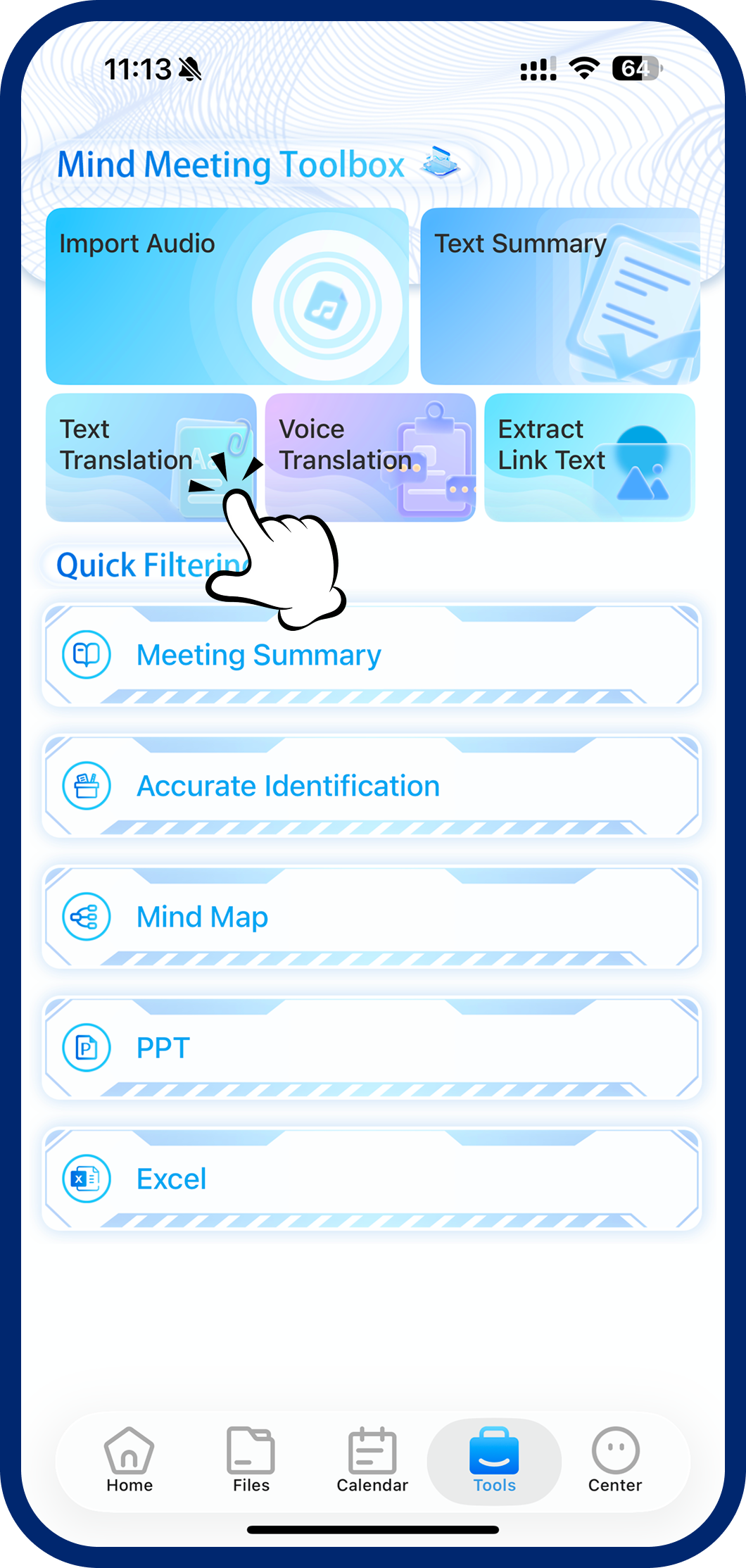
Step 1: Open Text Translation
Tap "Toolbox" at the bottom, then select "Text Translation."
2
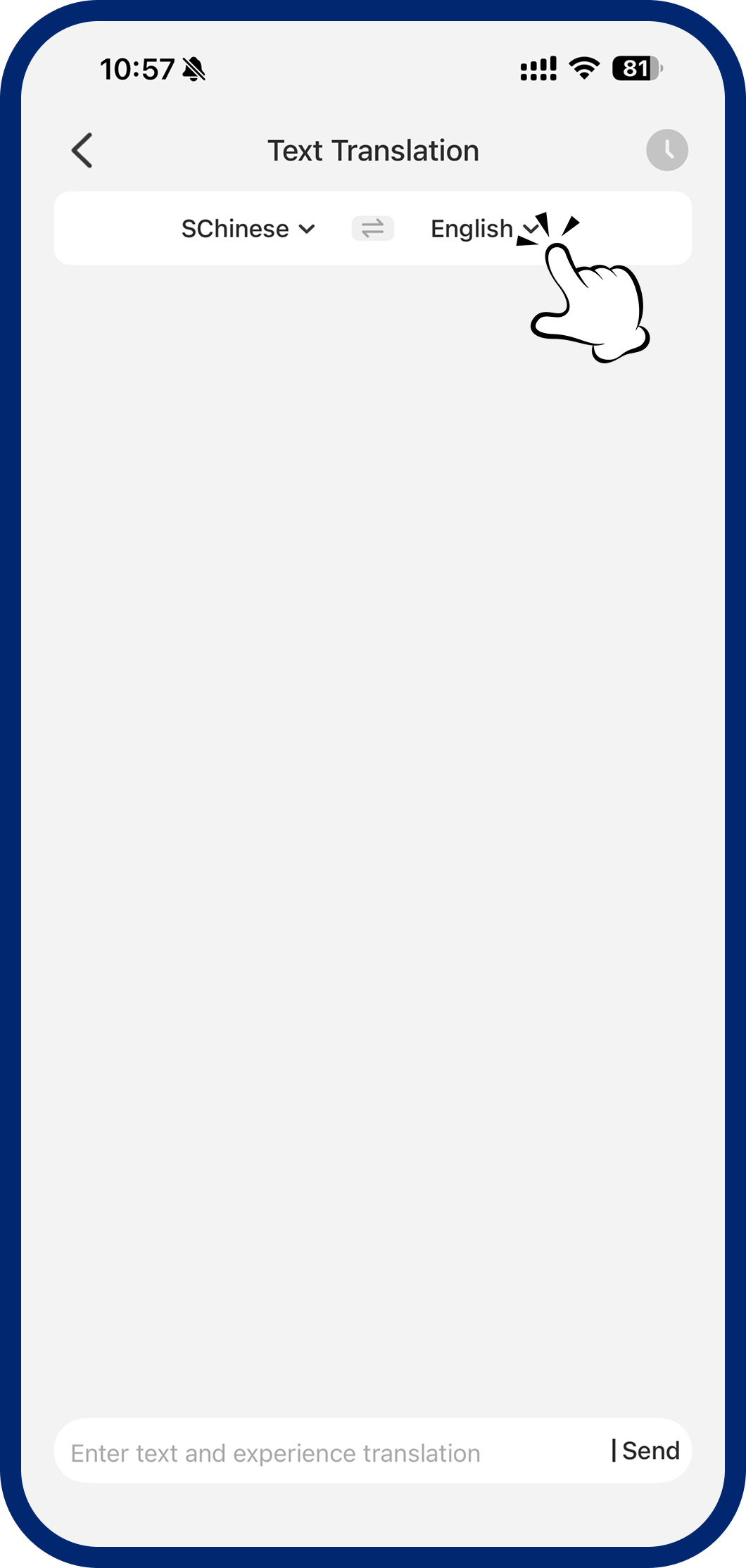
Step 2: Set Languages
Tap the language bar at the top to set both your source and target languages.
3
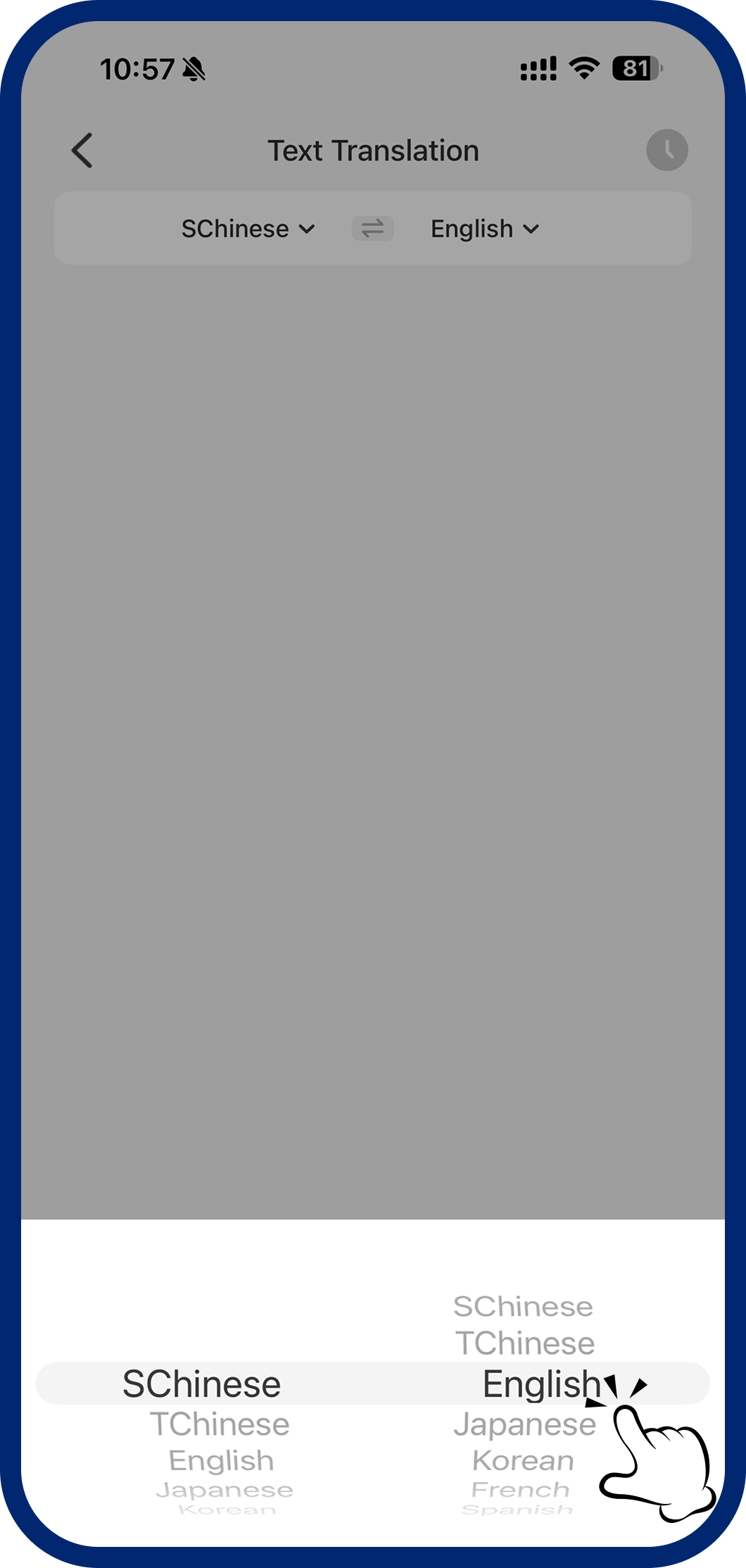
Step 3: Pick Target Language
Scroll through the full list of supported languages and tap to select.
4
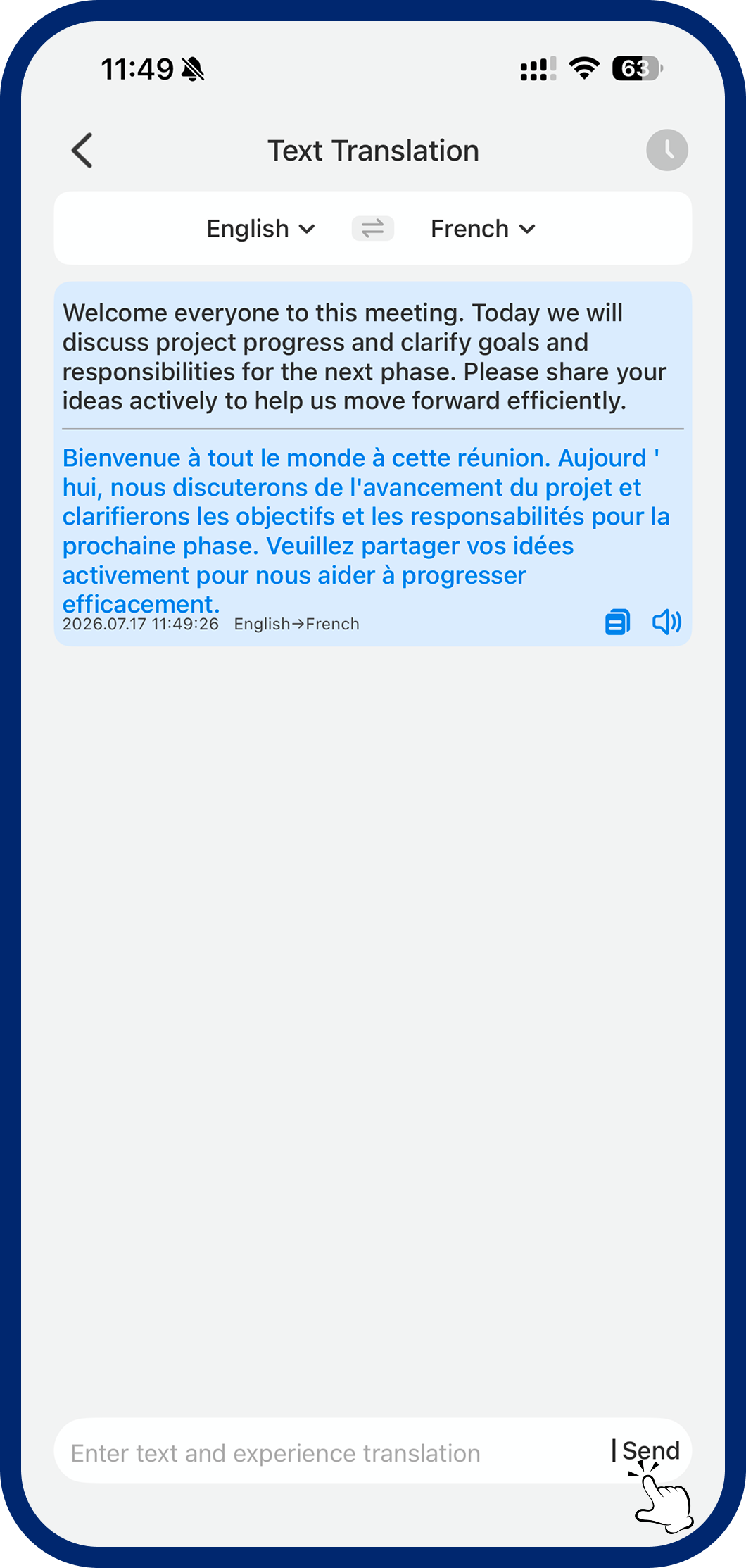
Step 4: Enter Text & Translate
Type or paste text into the input box, then tap "Send" to get your translation.
5
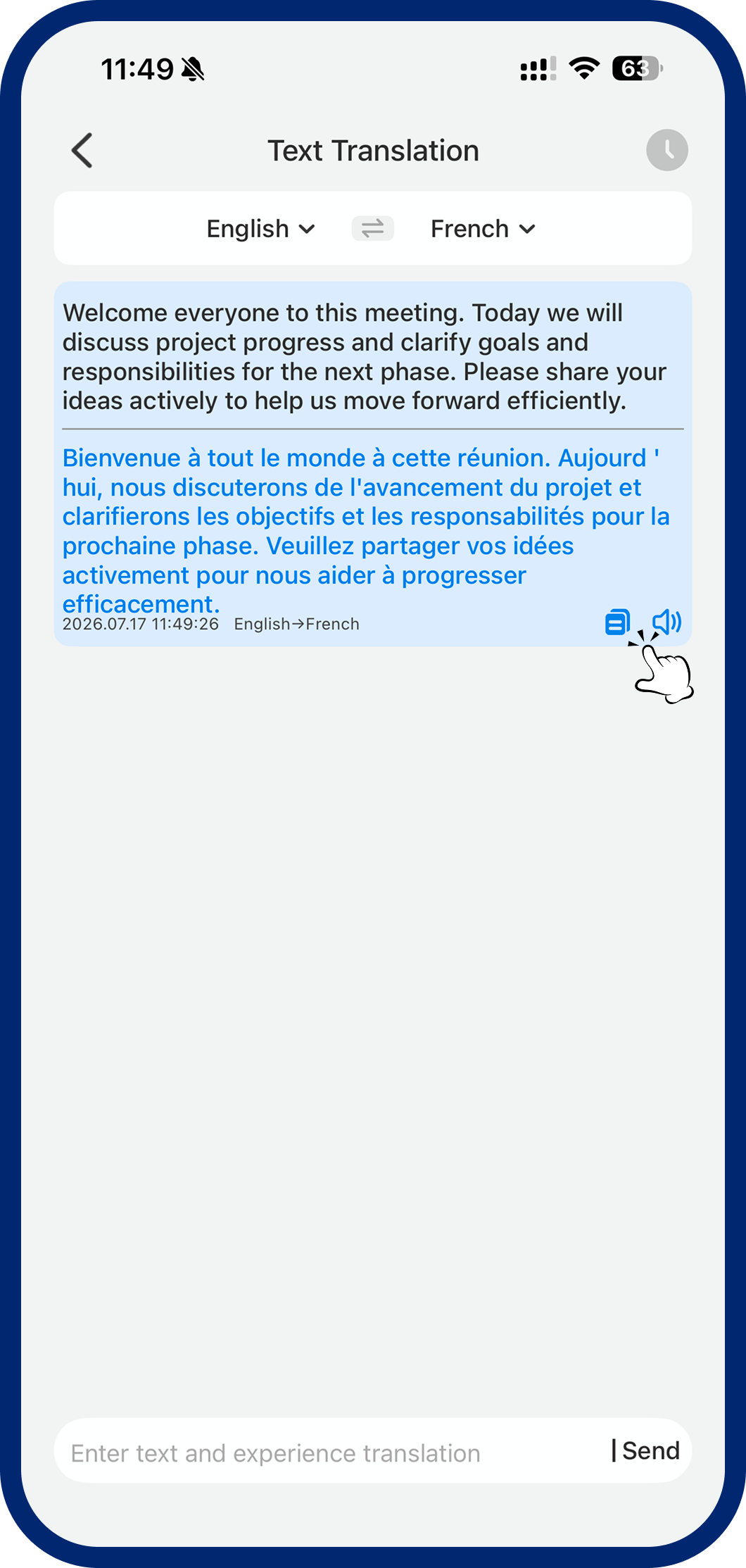
Step 5: Copy & Listen
Tap the result card to copy the translation instantly. Tap "Play" to hear the native pronunciation.
6
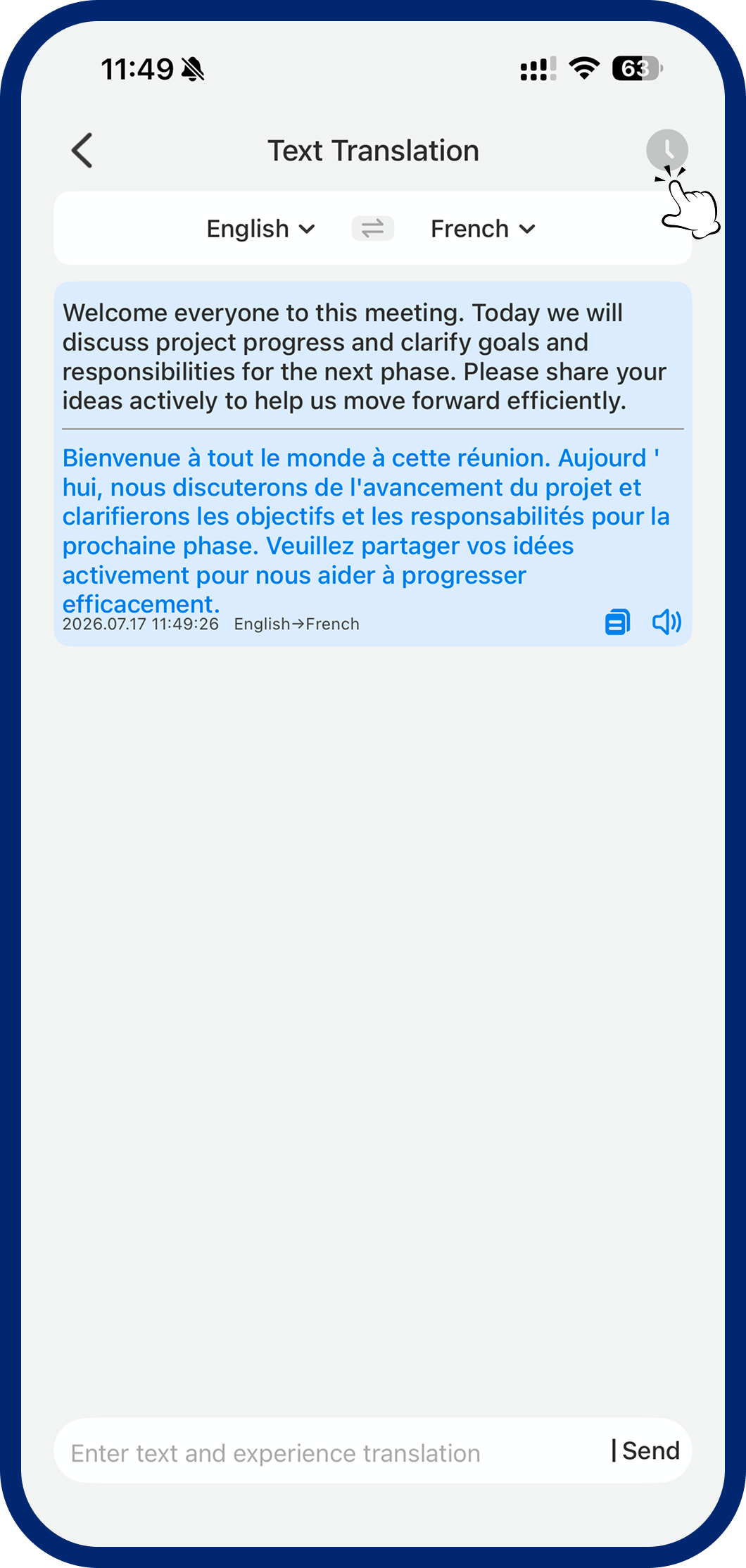
Step 6: View History
Tap the history icon in the top-right corner to browse all your past translations.
7
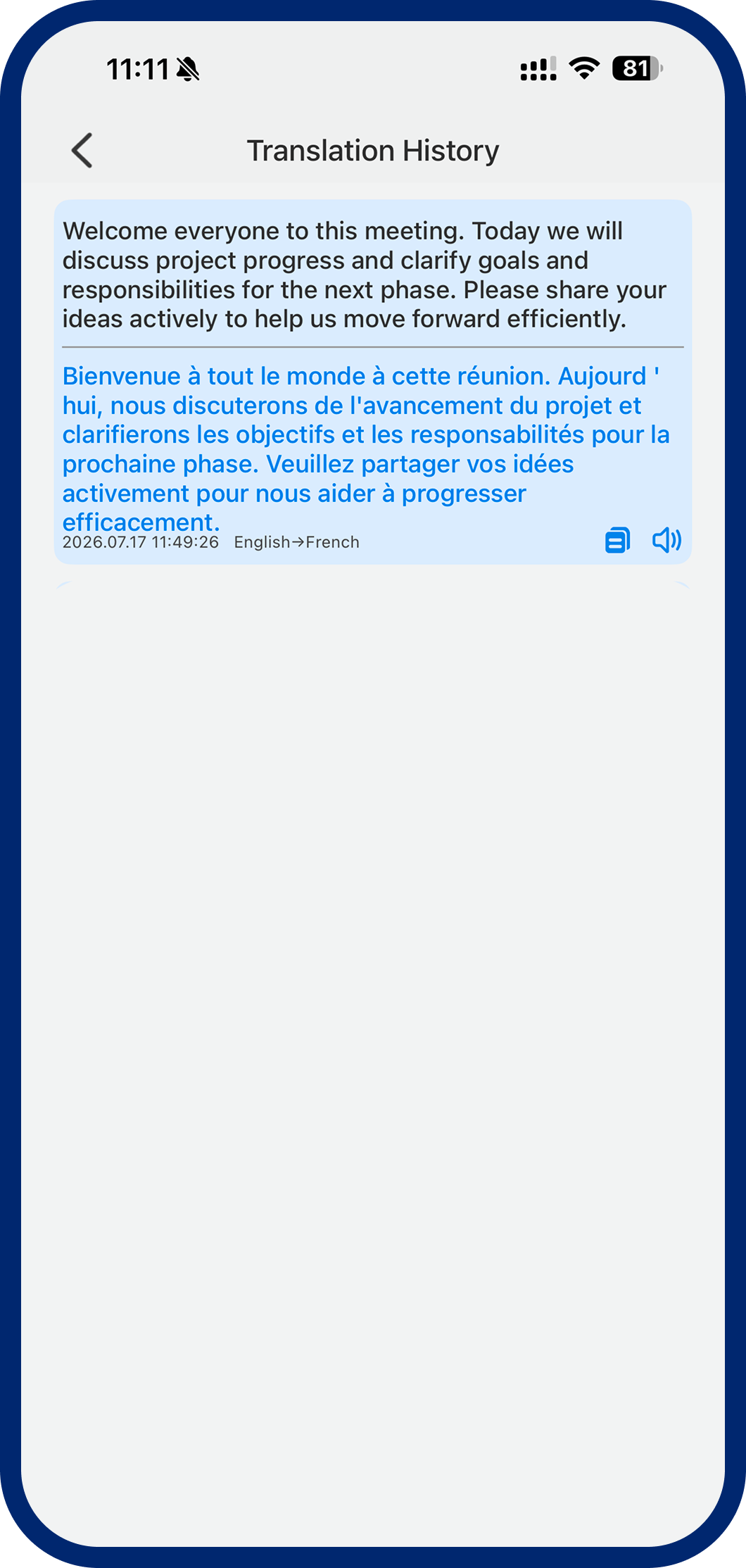
Step 7: View History
Tap the History button to access your text translation history and view all previous translation records.